This article provides the optimal power settings for ConnectUC and includes Power Settings for Microsoft Edge, Google Chrome, Microsoft Windows, and Mac.
Microsoft Edge
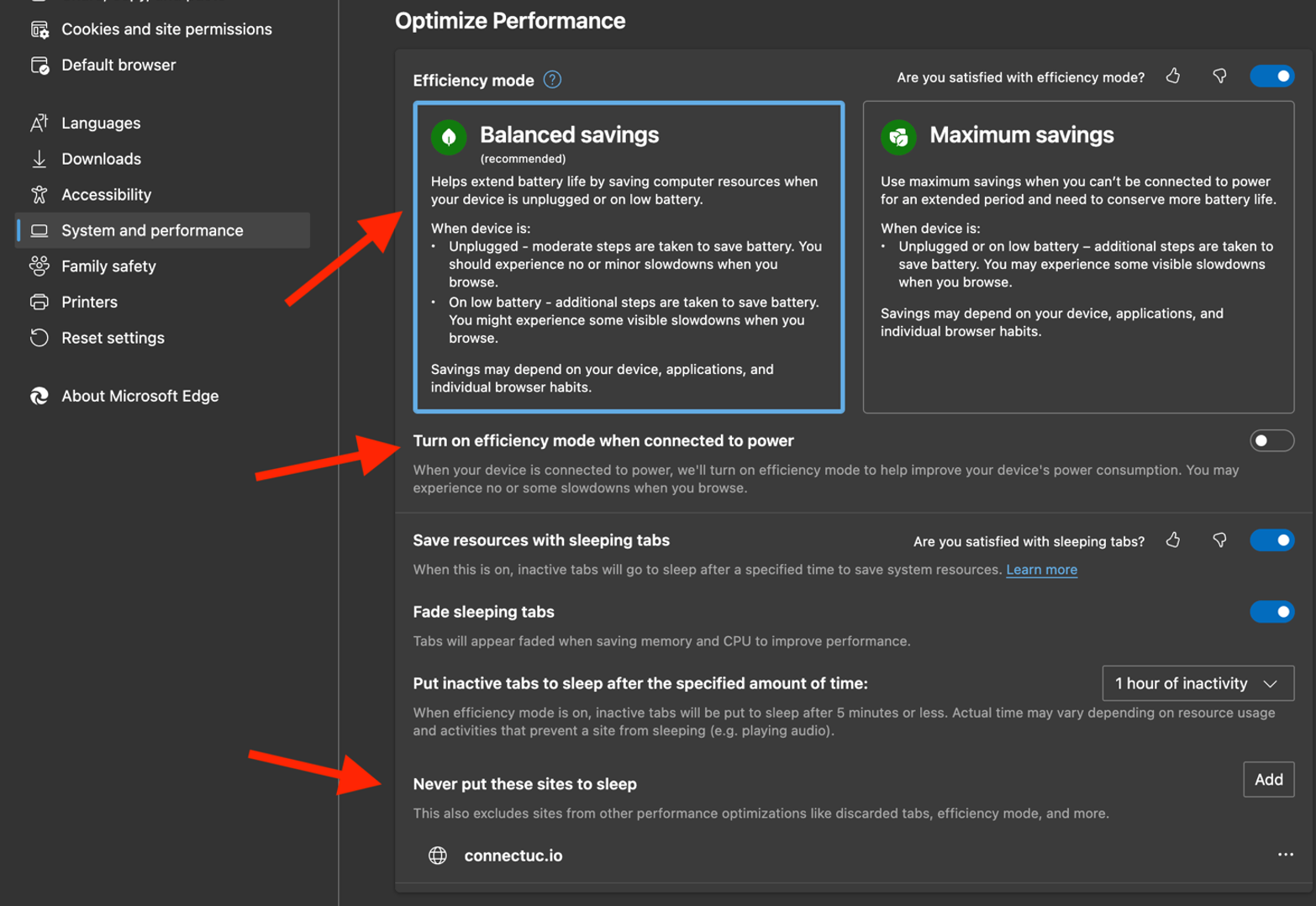
- Navigate to Settings > System and Performance and enable 'Balanced Settings' for power management.
- Turn off “Turn on efficiency mode when connected to power”.
- Add “connectuc.io” or your branded domain to the section titled “Never put these sites to sleep”.
Google Chrome
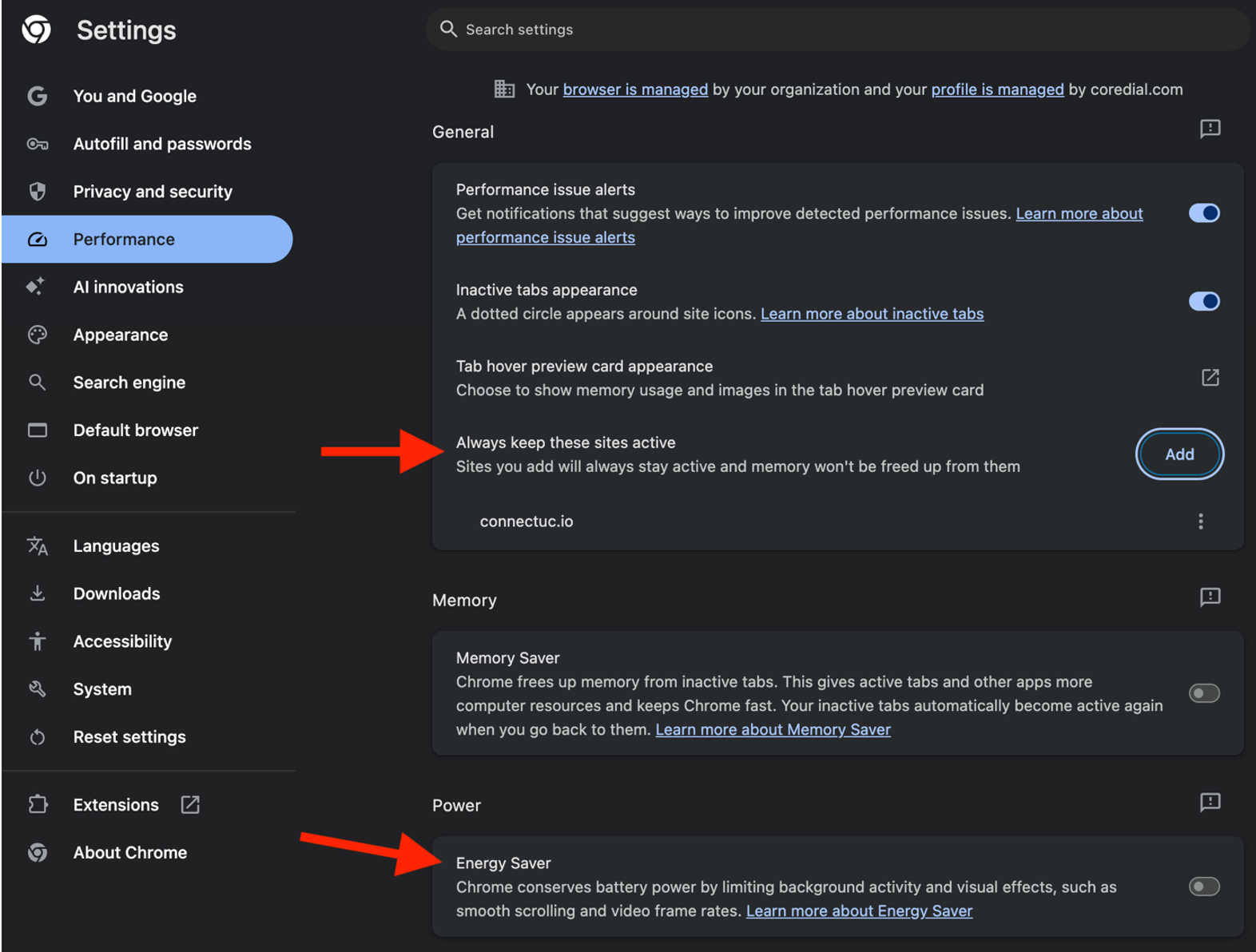
- Navigate to Settings > Performance and add “connectuc.io” or your branded domain to the section titled “Never put these sites to sleep”.
- Disable Energy Saver.
Microsoft Windows
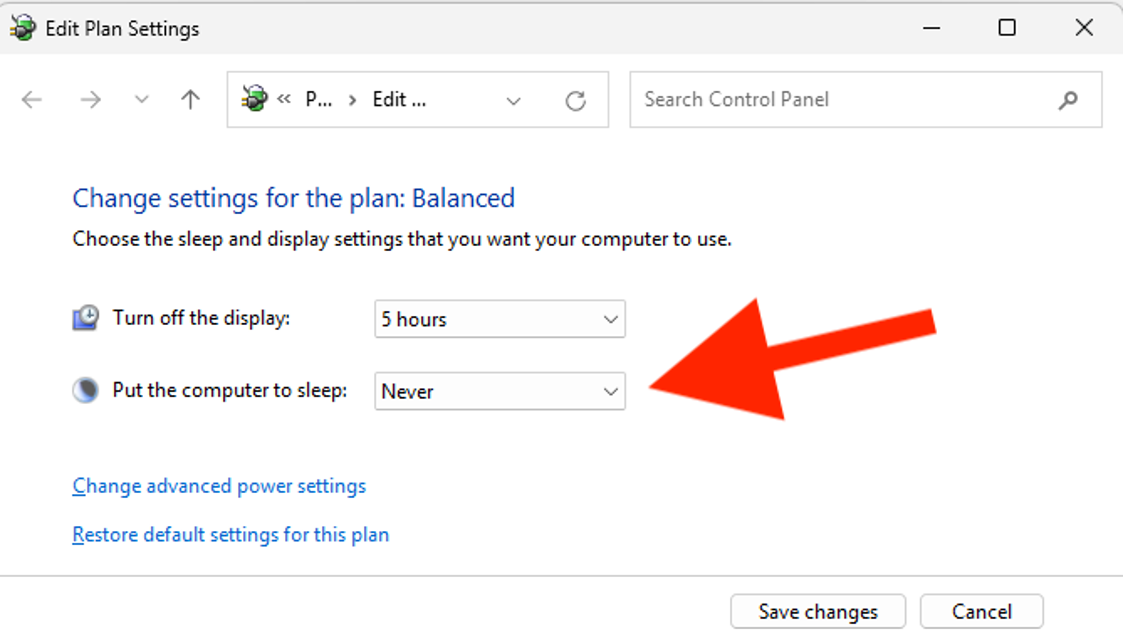
- Navigate to Windows Settings > Hardware and Sound > Power Options > Edit Plan Settings.
- Select “Never” for the section titled "When to put the computer to sleep".
Mac
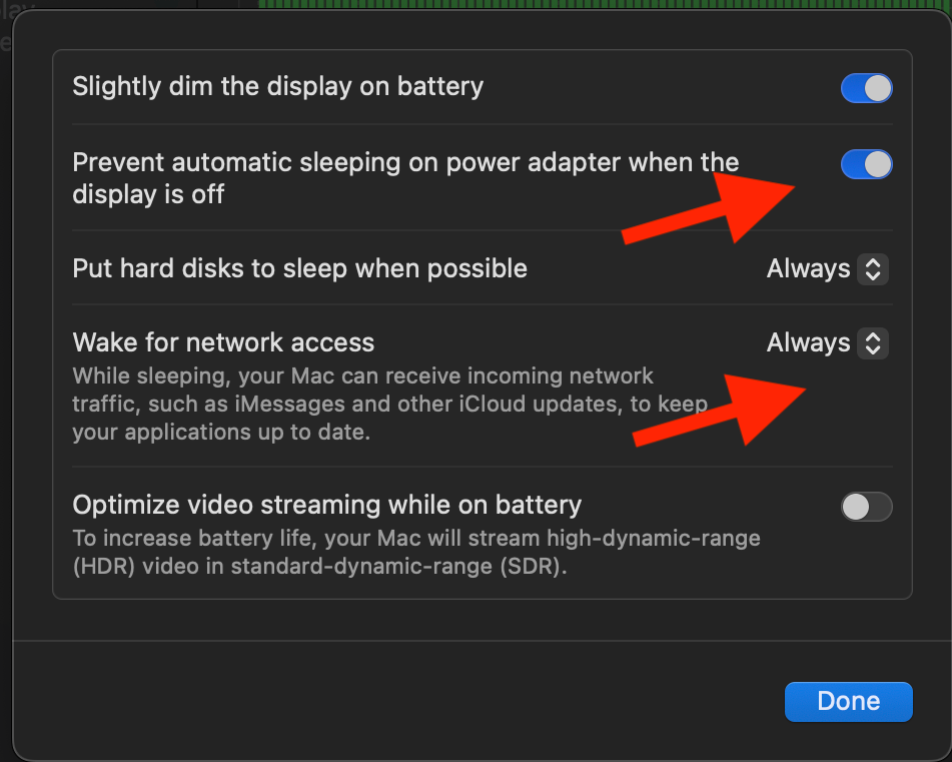
- Within Battery settings, set Lower Power Mode to “Never”.
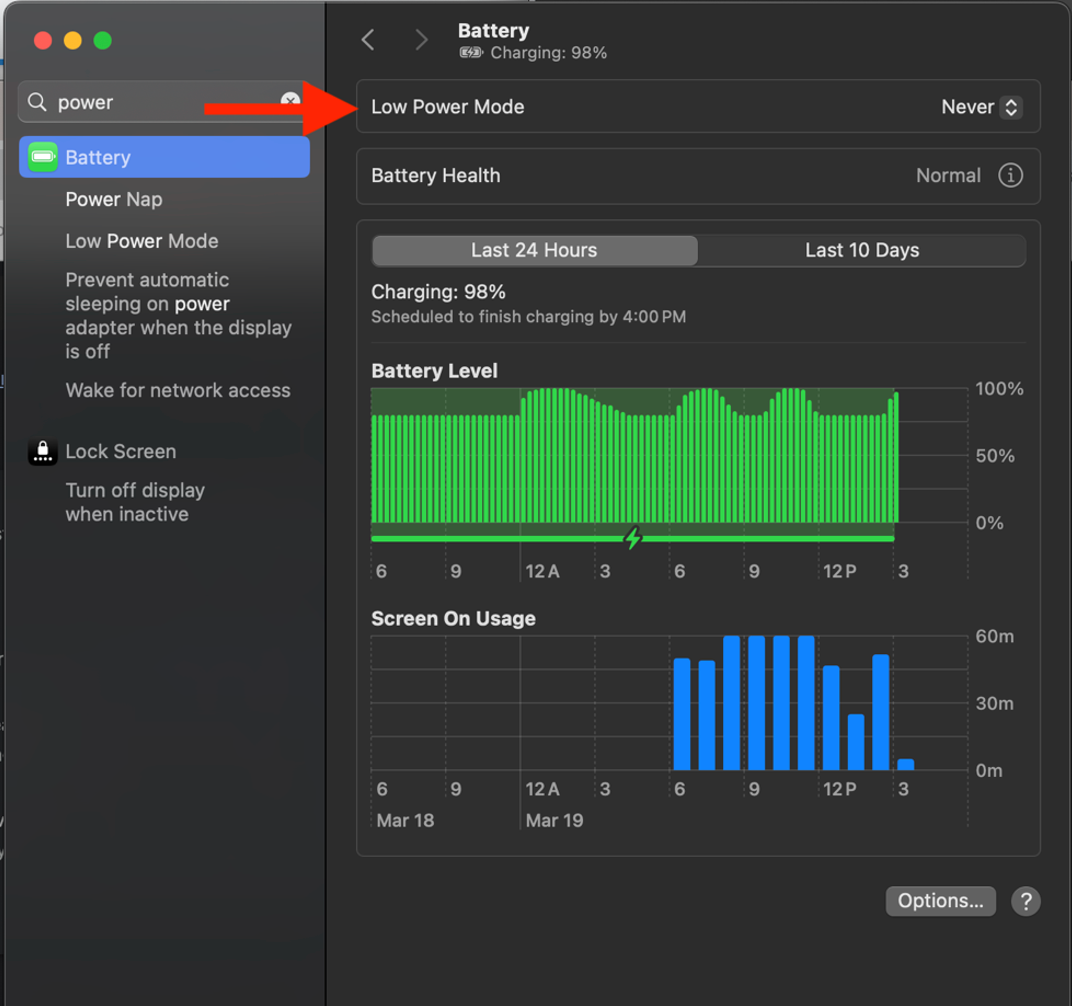
- Click Options within Battery settings and enable 'Prevent automatic sleeping on power adapter when the display is off” and set the option “Wake for network access” to “Always”.