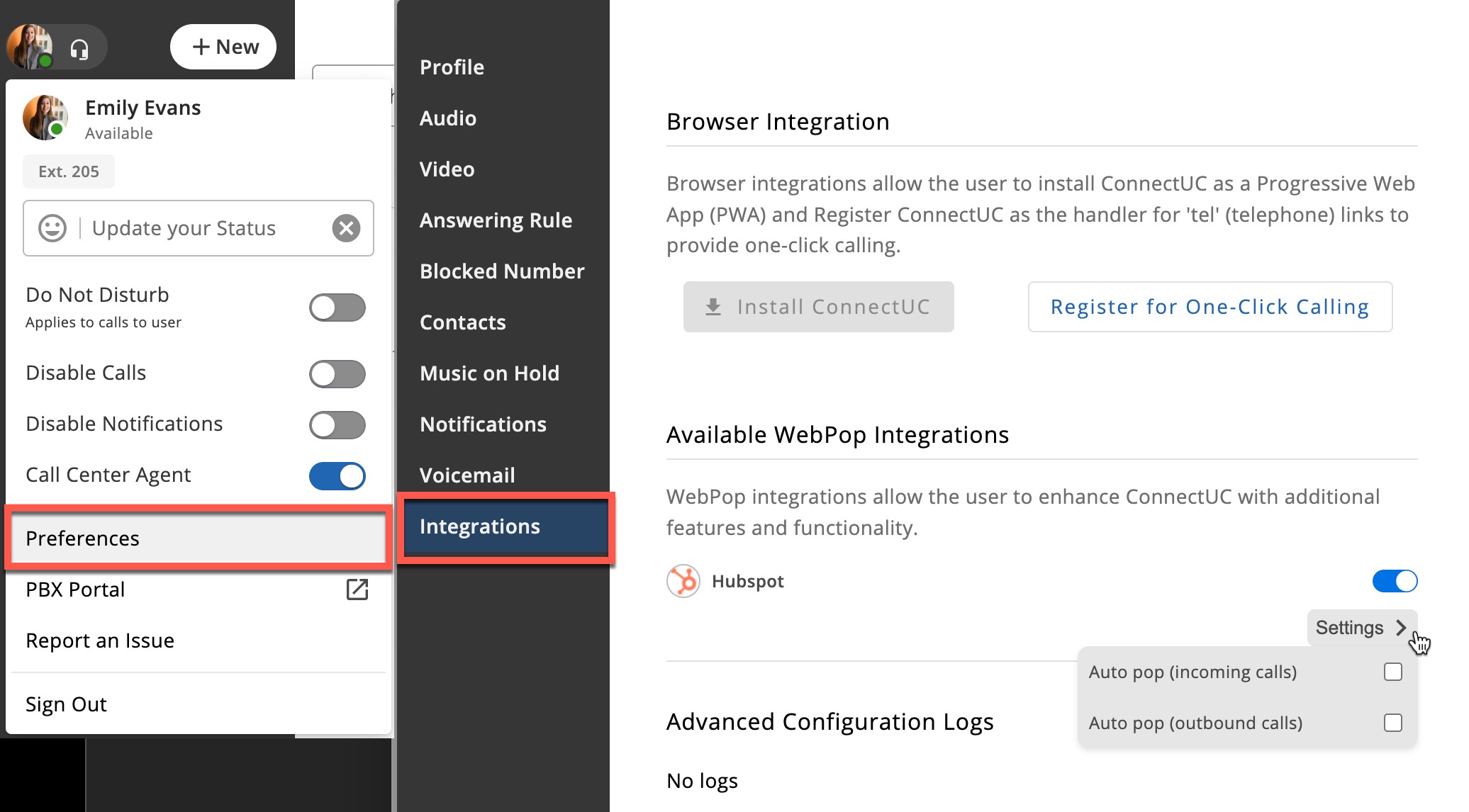
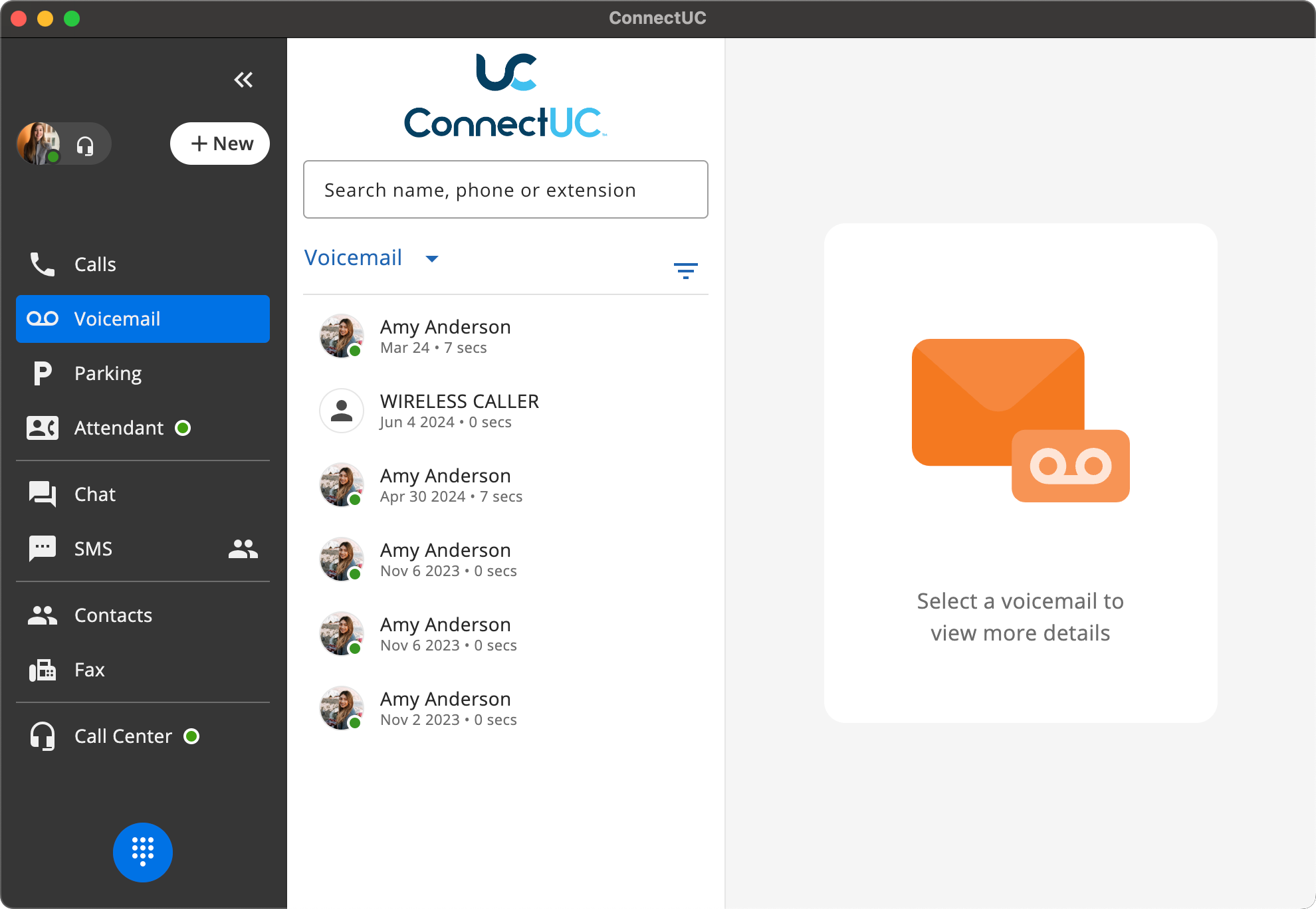
The ConnectUC Desktop app includes all the same abilities as the web app while also extending the functionality of the platform via integrations, including the ability to enable the ConnectUC WebPop integration.
Before you can download the ConnectUC Desktop app from within ConnectUC Web, you must first enable the 'Show ConnectUC Desktop Downloads' option within the ConnectUC Settings.
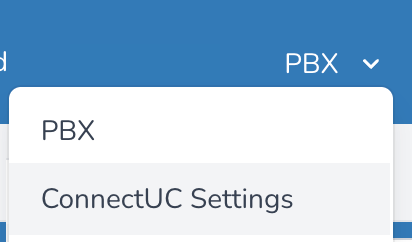

Once this option is enabled for your domain, please be sure to log out and then log back in. When the clients are visible in ConnectUC, please proceed with the steps below to download and install.
Alternatively, you may download using the links below:
- https://connectuc-releases.s3.us-east-1.amazonaws.com/desktop-prod/latest/ConnectUC.dmg
- https://connectuc-releases.s3.us-east-1.amazonaws.com/desktop-prod/latest/ConnectUC.exe
- https://connectuc-releases.s3.us-east-1.amazonaws.com/desktop-prod/latest/ConnectUC.msi
Installation
You can find links for both MacOS and Windows conveniently located under the ‘Apps’ section of the ConnectUC settings menu.
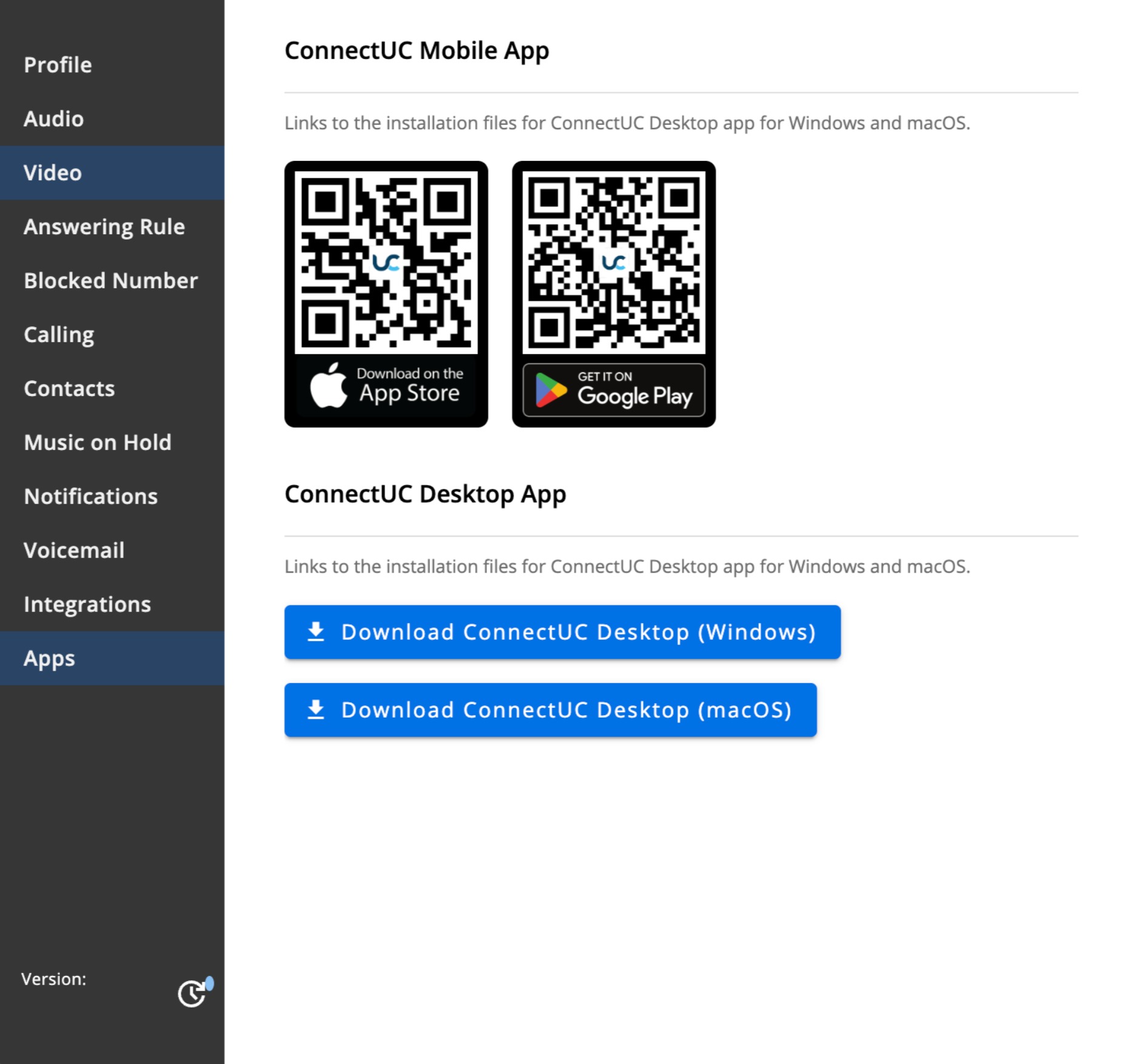
Note: If you have both the ConnectUC PWA app and ConnectUC Desktop app installed, please be sure to select the appropriate app as they may appear similar.

Using the ConnectUC Native App
When loading the app for the first time, you will be asked to sign in just as you would with the web application.
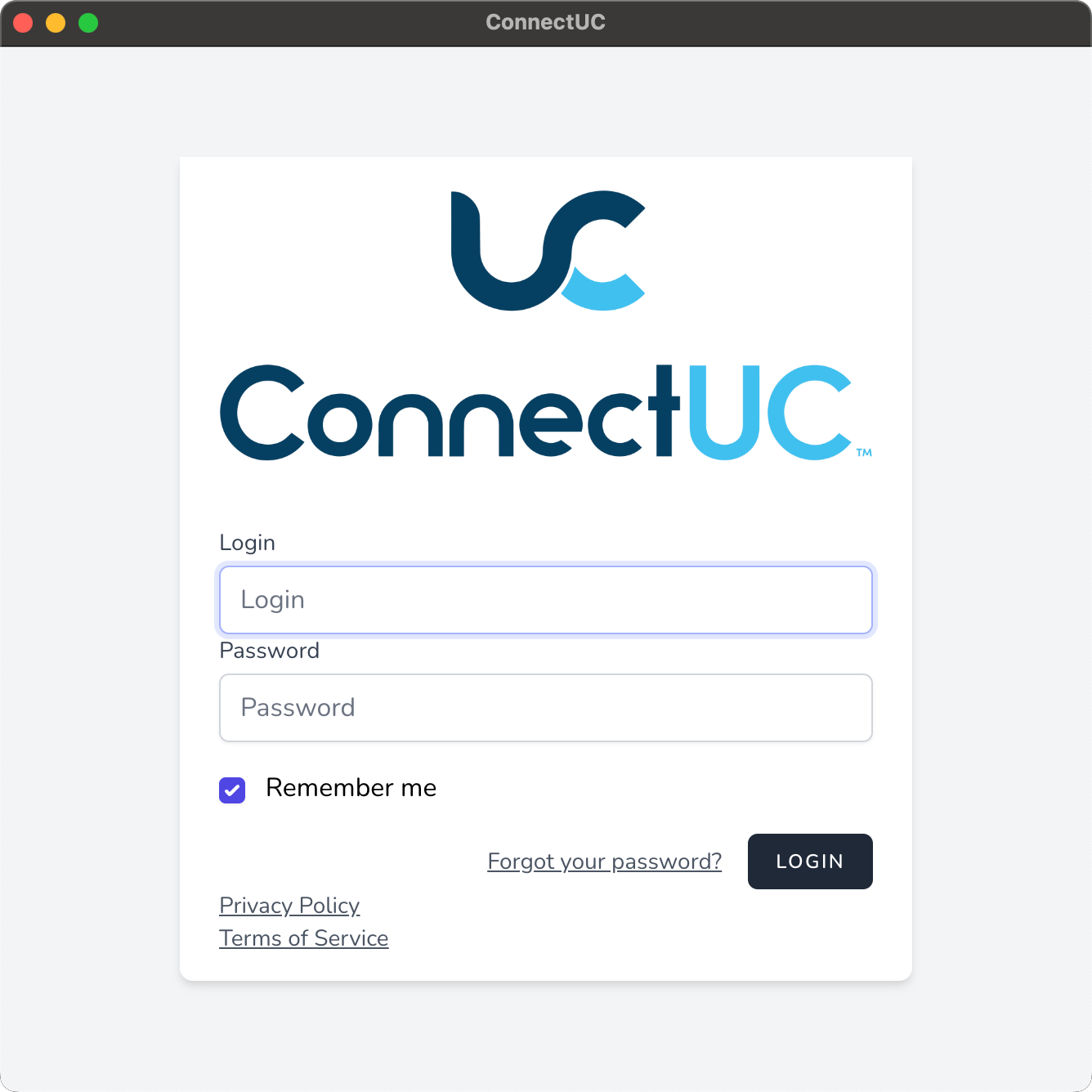
After signing in to the ConnectUC Native app, you will have access to all the same options available within the Web application. Please see the articles in this section if you're unsure how to use these functions.
ConnectUC Desktop Integration Settings
The ConnectUC Desktop app includes Integrations settings that are not available within the Web version.
The ConnectUC Desktop Integrations settings allow you to configure installed integrations. For example, you can configure the WebPop integration settings from within this menu.
To access these settings, navigate to User Icon > Preferences > Integrations.