
This article lists all known UC Client issues and helpful FAQs.
Known Issues
Updated on January 16, 2026
- If your computer has been in sleep mode for a long period, a user may see an error message about not being connected to the services. The message prompts the user to refresh the page or logout/in.
- MFA (Multi-Factor Authentication) is not yet supported. If your user has MFA enabled, you will not be able to log in.
- In Firefox, a call will not start until the main window is focused AFTER the call pop-out window appears. - CUC-846
- ConnectUC is not designed to work in virtual desktop environments.
FAQs
What MacOS/Microsoft OS or browser versions are compatible with ConnectUC Web?
ConnectUC Web can be used in a Browser tab or be installed as a Progressive Web App, and does not have a specific OS requirement. A Windows/Mac native desktop app is also available
For the best experience, we recommend that you use Chrome or Edge and ensure that the browser is up to date.
Recommended:
Chrome - Version 130 or above
Microsoft Edge - Version 129 or above
ConnectUC Web/Desktop is not designed to work on mobile devices.
Also note that we do not currently support VDI Media Redirection. If you would like to assist with developing this please contact your support team.
What are the system requirements for ConnectUC Destkop?
Mac - MacOS 12 or Above
Windows - Windows 10 or 11
Why can I not log in?
To log in to ConnectUC, you'll need to use your UCaaS username (typically extension@domain). Your user account needs to have portal access permission (or be an account type that has portal access). By default this is a role of Simple User or higher.
Is there a way to reset a password for a user and/or force a user to log out of ConnectUC?
Yes, an Admin user may reset another user's password in the PBX by navigating to PBX > User > Advanced Settings > Account Security and selecting "Force Password Reset" for the selected user.
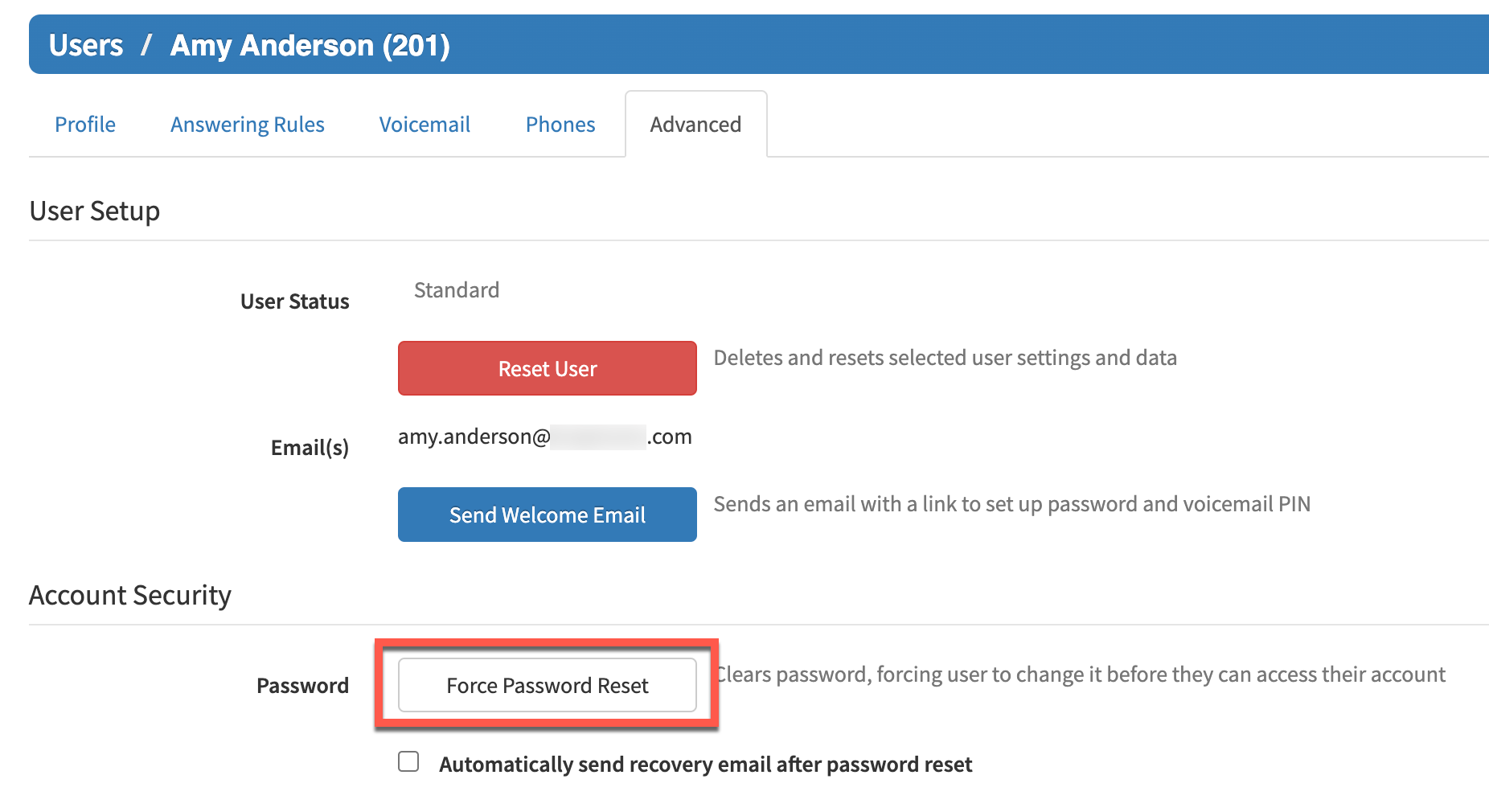
Once the button is selected, the user will be sent a reset password email and the user will also be forced out of ConnectUC to complete the password reset process.
Note: Mobile app users will only be forced to log out once the app is brought to the foreground.
How can I find what version of ConnectUC Desktop or Web I'm using?
You will find the version number you are using on the preferences page in the lower left. There's also a refresh button there to check for a newer version.
The Desktop client has two versions. The Desktop app version and the Web version are seen on a Mac by clicking on ConnectUC and selecting About ConnectUC. On a Windows computer the versions can be seen by clicking Help and then About.
How can I use SMS?
1. The DID utilized must be SMS-enabled
2. The DID utilized must be assigned to a 10DLC Campaign. Must register a Brand and Campaign for 10DLC prior.
3. SMS Assigned to the user's extension (not to email).
4. If you want to see the shared SMS numbers in use, the shared option is just below where you assign the SMS to the user.
The DID can then be used for both ReachUC and ConnectUC (we had some code that was moved to production to allow for this).
If a user has SMS enabled on their account but it's still not showing up in the left side menu, the user might have SMS to eMail enabled or not have SMS enabled in ConnectUC Settings.
----
Function:
ReachUC will sync sent messages to ConnectUC in real time.
Known Current Limitation:
ConnectUC will sync sent messages to ReachUC but not realtime, but only on REFRESH of messages.
Do I have the ability to block numbers in SMS?
Yes, if you wish to stop receiving SMS/MMS messages from a number, simply respond with the keyword 'BLOCK.' Sending 'BLOCK' as a response will ensure the recipient is blocked (Each keyword response is only applicable to the number sending the response).
If you wish to stop blocking a previously blocked number and resume incoming messages, simply respond with the keyword 'UNBLOCK.'
Additionally, you may also send 'MSGBL' (Abbreviation for 'Message Black List') to any number, and you will be provided with a list of currently blacklisted numbers, or confirmation that no numbers are currently being blocked, as seen below.
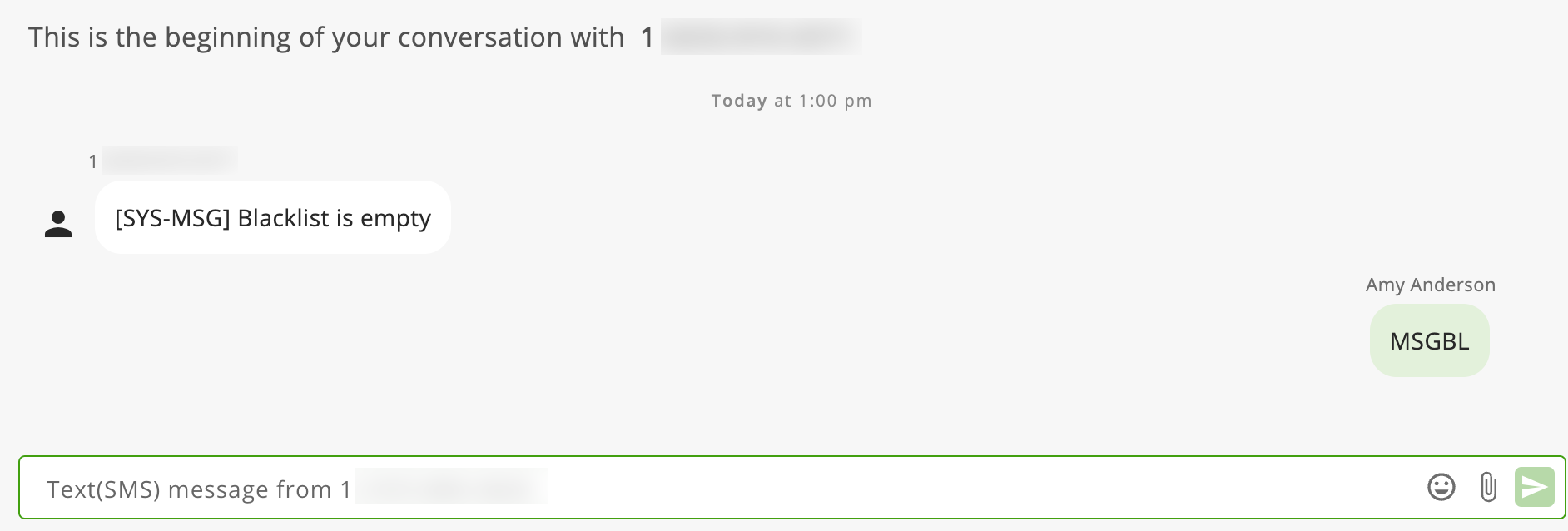
Using the keywords BLOCK/UNBLOCK will not notify the wireless subscriber that they have been blocked or unblocked.
How long are SMS messages stored/retained in ConnectUC?
There is currently no retention period for SMS messages, they are kept in perpetuity. Additionally, users cannot delete conversations completely, they can only close them from view.
Why can't I delete SMS Messages
There are a couple reasons that we don't have delete for SMS Messages:
1 - Certain industries require SMS Messages to be stored for a certain length of time.
2 - With Shared SMS it wasn't clear how we should handle the conversations if an owner deleted a SMS or another shared user deleted the conversation.
Why does ConnectUC keep prompting at login that the app is muted?
Please visit our dedicated article regarding why this may occur and how to resolve the issue.
Can an 'Integrations Only' user log in with their PIN?
For security purposes, VM PINs are not accepted.
Users with the 'Integrations Only' scope can log in, but only if they have already been set up with a PBX password. This process will need to be completed by an Office Manager role or higher by accessing the user's profile and modifying the field.
Should I be getting pop-up notifications of calls and other events?
On a Mac make sure that Chrome or Edge and their helpers have notifications enabled.
Also ensure that pop-ups are allowed by clicking on the Lock icon in the browser's address bar.
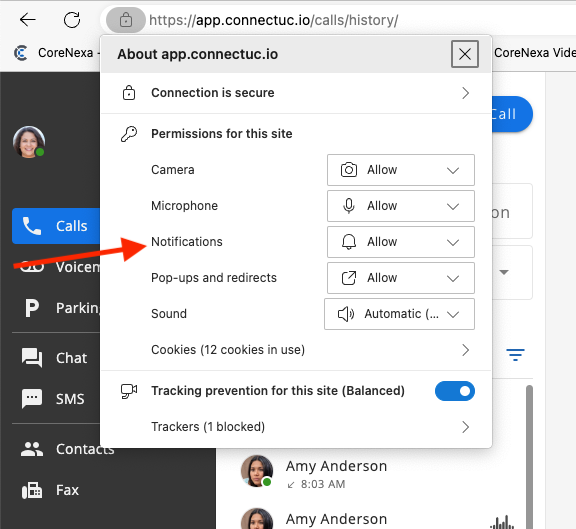
If you are using a Mac, ensure that notifications are enabled for the browser and browser helper that you're using in Settings -> Notifications.
What firewall ports need to be open outbound for ConnectUC Web and Desktop?
ConnectUC uses encrypted WebSocket connections on ports 443 tcp/udp and 9002 tcp. Additionally audio communications is over DTLS (TLS for UDP) on ports 30000 - 40000 udp.
Chat additionally opens a port 443 to Amazon Chime messaging services. WebSocket URLs connect to servers in the DNS domain ws-messaging.chime.aws. Information about Chime messaging can be found here.
On Windows PC's the Windows firewall may not allow all ports to connect back into the desktop app. Make sure that in the private firewall profile that connectuc.exe is allowed.
Not having the proper firewall ports open or having a PC's local firewall block ConnectUC traffic can cause one way or no audio problems.
Calling doesn't seem to work; what could be wrong?
ConnectUC utilizes a websocket on port 9002 to initiate communications. The user may have some filtering application on their computer or a firewall that might be blocking port 9002 tcp outbound.
If port 9002 is blocked the user will see a yellow warning banner.
How does ConnectUC Encrypt / Secure traffic?
All traffic between ConnectUC and the back-end services is encrypted. All signaling is sent and received over encrypted WebSockets (SSL/TLS).
Voice traffic is encrypted with DTLS (TLS for UDP).
With Messaging, can ConnectUC users and ReachUC users message each other?
No. The messaging features built into ConnectUC are different than the messaging built into ReachUC. Once ConnectUC Mobile's Chat feature is done, it will have the proper messaging to communicate with ConnectUC Web.
In Company Contacts, why are users seeing Ring Groups or other extensions that they shouldn't see?
To exclude users that you don't want to be seen, uncheck "List in Directory" on that user.
To exclude Ring Groups and other "System" users, locate the "Hide System Users" option at the very bottom right of the PBX Users page and uncheck the box. Once unchecked, all system users will be displayed, allowing you to toggle their "List in Directory" settings.
There's a routine that runs nightly to sync the PBX users with the ConnectUC user database that applies changes to the "List in Directory" setting. Unfortunately, at this time, there's no event that's triggered to make this change in real time.
Why can't I access the PBX Portal from ConnectUC?
If your ConnectUC user role is higher than a Basic User and you want to access the PBX portal, you should log into the PBX portal directly. This is a Fusion Auth related limitation, not ConnectUC.
Is DND synced to the portal, or is it independent?
DND (Do Not Disturb) status is supported across your desk phone and ConnectUC. Setting DND in one location will enable DND for both. Your telecom support team can change DND behavior to be on your device only.
Why are new calls in Call History are only showing if I refresh the page or sign out and then back in?
This indicates that events are unable to be sent from the communication system back-end to the ConnectUC Client. This can happen sometimes if a user leaves their application running overnight and the user's computer goes to sleep.
Refreshing the web page or signing out/in will typically restore the connection.
This same issue may prevent the client from getting notifications for new Chat or SMS messages as well as new Voicemails and Faxes.
Can you share/import contacts from Outlook/Google?
This feature is coming. Once released, you will be able to log in with an Outlook or Google account, and your contacts will sync and be available everywhere your contacts are listed.
Can ConnectUC work as an attendant as well? i.e. While on call on desk phone, transfer using ConnectUC?
Yes! In DashManager -> PBX -> ConnectUC Settings, enable the Attendant Console. There's an additional setting that allows the Attendant to also see all active calls in the console.
Does ConnectUC support Video Meetings with Screen Sharing?
Yes, today, this can be done two ways. It is available inside your company from within the Chat feature.
Additionally, Video Meetings are now available that users can invite outside parties to.
Does the ReachUC CRM Connector work with ConnectUC?
Yes.
Does ConnectUC support Bluetooth wireless headsets?
Yes, Bluetooth wireless headsets can be added in audio settings. Call Control will not work (pickup/hangup) however.
Headset Call Control (HID support)
Call control (HID support) on popular headsets is available in the Desktop client only. Currently Yealink, Jabra, Sennheiser, and Logitech headsets are supported.
The headset must be USB connected (or Bluetooth to a vendors USB interface).
If you are using a Yealink headset, ensure that Yealink's USB Connect software is NOT running. If Teams is installed on your computer, it will put the headset in Teams compatibility mode and cause the headset to not work with ConnectUC.
Does ConnectUC support click-to-dial?
Yes, please reference the dedicated click-to-dial article for more information.
Will there be a way for ConnectUC to load on startup on Windows or Mac?
Yes. It is built as a PWA web app and also a native Desktop app. Please reference the note at the bottom of the installation guide for detailed instructions for Windows and Mac.
Additionally the native Desktop client can be installed and set as a startup application in your operating system.
Does ConnectUC support Hotdesking?
Any user can log out, and another user can log in on the same browser for functionality similar to hotdesking.
What kind of audio quality will I get from ConnectUC?
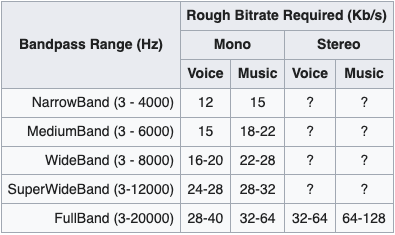
For ConnectUC to ConnectUC calls we're using Opus and FullBand quality (if you have stereo headset is the only to see a difference) when it was user to user call. For ConnectUC Web to Mobile would step down to WideBand. For ConnectUC and calls to a carrier it is downgraded to g711 quality as this is what carriers require.
What is causing choppy audio?
Poor audio quality (choppy audio or drop-outs in a conversation) is most often a result of a poor network connection. If the computer is on a wired connection, there might be network congestion, network QOS might not be configured properly, or the internet connection may be experiencing issues. Additionally, if the user is on Wifi, the user's computer may be too far from an access point.
If the user is experiencing poor quality with every call, consider contacting your telecom provider for an evaluation.
Why am I having trouble parking calls?
Sometimes I get a toast pop-up message "Parking call xxxx failed with error: Could not find active call for callid: xxxx" (where xxxx = some CallID).
This can happen when the PBX's inter-node events are very busy and queuing across the platform. What this means is that not all nodes know about all of the currently active calls.
Several enhancements to inter-node communications have been made to minimize the occurrence of this issue.
Additionally an enhancement to mark inbound SkySwitch Trunk calls are marked with the original SIP Call ID so that CUC doesn't need to go lookup the nod location of the original call. This marking however does not get done on outbound calls or inbound calls on partner supplied trunks (BYOT).
A user work around is to just dial the Park queue number in CUC.
In the client, if you appear to be on a call but are not, your presence may be stuck. This can happen if a signal from your PC is lost somehow and doesn't reach the PBX infrastructure. The easiest way to clear this is to make a call and hang up. If this happens repeatedly consider contacting support.
I'm seeing a message "Unable to connect to calling services error"
With the desktop services this typically means that the client is unable to communicate to the back-end on TCP/IP port 9002/tcp. This can also happen if DNS lookups for back-end services aren't happening properly.
Check the firewall settings and ensure that port 9002/tcp is allowed outbound. Also, ensure that DNS is configured properly on the PC and network.
I can't see any Park Queues in ConnectUC
As of version 1.26.1, Departments were added as filters for viewing Park Queues. Remove any Department on Park Queues and they will be visible again.
Partners can control viewing of Park Queues by Site and Department now.
Why do I see a missed call on my deskphone but not in ConnectUC?
Deskphones and some softphones maintain their own history of calls. If a call rings to the phone and isn't answered it's stored in the phone's memory. If you reset the phone, that call history is lost.
ConnectUC gets it's call history from the PBX. This has benefits and limitations. The benefit is that call history will be consistent across ConnectUC clients and last as long as the PBX will store call records. The limitation is that ConnectUC only knows what the PBX can provide for call history. To the PBX a call isn't missed if it rings a ring group or queue, nobody answers and then the call is then forwarded or routed to some attendant or voicemail and answered.
Why do I not see a CallerID Prefix in my call history of ConnectUC?
The answer here is similar to the previous FAQ item answer.
ConnectUC gets it's call history from the PBX. This has benefits and limitations. The benefit is that call history will be consistent across ConnectUC clients and last as long as the PBX will store call records. The limitation is that ConnectUC only knows what the PBX can provide for call history.
The PBX doesn't see the CallerID Prefix. Thus the call history won't have the prefixes shown in the Call History.
DND in ConnectUC seems to be being enabled randomly for a user
This is almost always caused by a user's Yealink phone.
bw.feature_key_sync="0"